> For the complete documentation index, see [llms.txt](https://help.sharkdom.com/llms.txt). Markdown versions of documentation pages are available by appending `.md` to page URLs; this page is available as [Markdown](https://help.sharkdom.com/integrations/zoho-crm.md).

# Zoho CRM

![](/files/DurAacyrIKI41N0UzM1X)

&#x20;While we aim for accuracy, the responses may sometimes be incomplete or incorrect. Please review and verify important information.\
You can check our [privacy-policy](https://sharkdom.com/privacy-policy) here

### How to Configure and Use Zoho CRM with Sharkdom

#### Overview

The Sharkdom allows you sync your customers, deals and contact pipeline from Zoho CRM to sharkdom to keep all your Partner Data at one place.\
Any actions taken on Zoho CRM would automatically be synced in sharkdom depending on how frequenct you want the data to be synced.

### &#x20;How to Connect Zoho CRM to Your Sharkdom Account

1. **Log in to Sharkdom**\
   Sign in using your Sharkdom account and navigate to **'My Integrations'.**

<figure><img src="/files/CxLjHDThsYk6IQTj6Mom" alt=""><figcaption></figcaption></figure>

2. **Connect your Zoho CRM**\
   Select Zoho CRM from integrations and login to your Zoho CRM account.

<figure><img src="/files/w646OvBY8QB5kioJjCB0" alt=""><figcaption></figcaption></figure>

<figure><img src="/files/WFTOSCJ1geburdrMRPZN" alt=""><figcaption></figcaption></figure>

3. **Click on Map Fields (might show you connect crm if your zoho crm app is not connected)**\
   Allow sharkdom permission to read and save the pipeline data for Account Mapping

*(sharkdom does not have any control in this pipeline syncing as the client who inport would remain sole owner of this data, sharkdom only shows relevant fields to your partners with common opportunities)*

<figure><img src="/files/SEJiHoIwEhL6JPU3r1l6" alt=""><figcaption></figcaption></figure>

<figure><img src="/files/czfBlVTmg7E2TfRDnybZ" alt=""><figcaption></figcaption></figure>

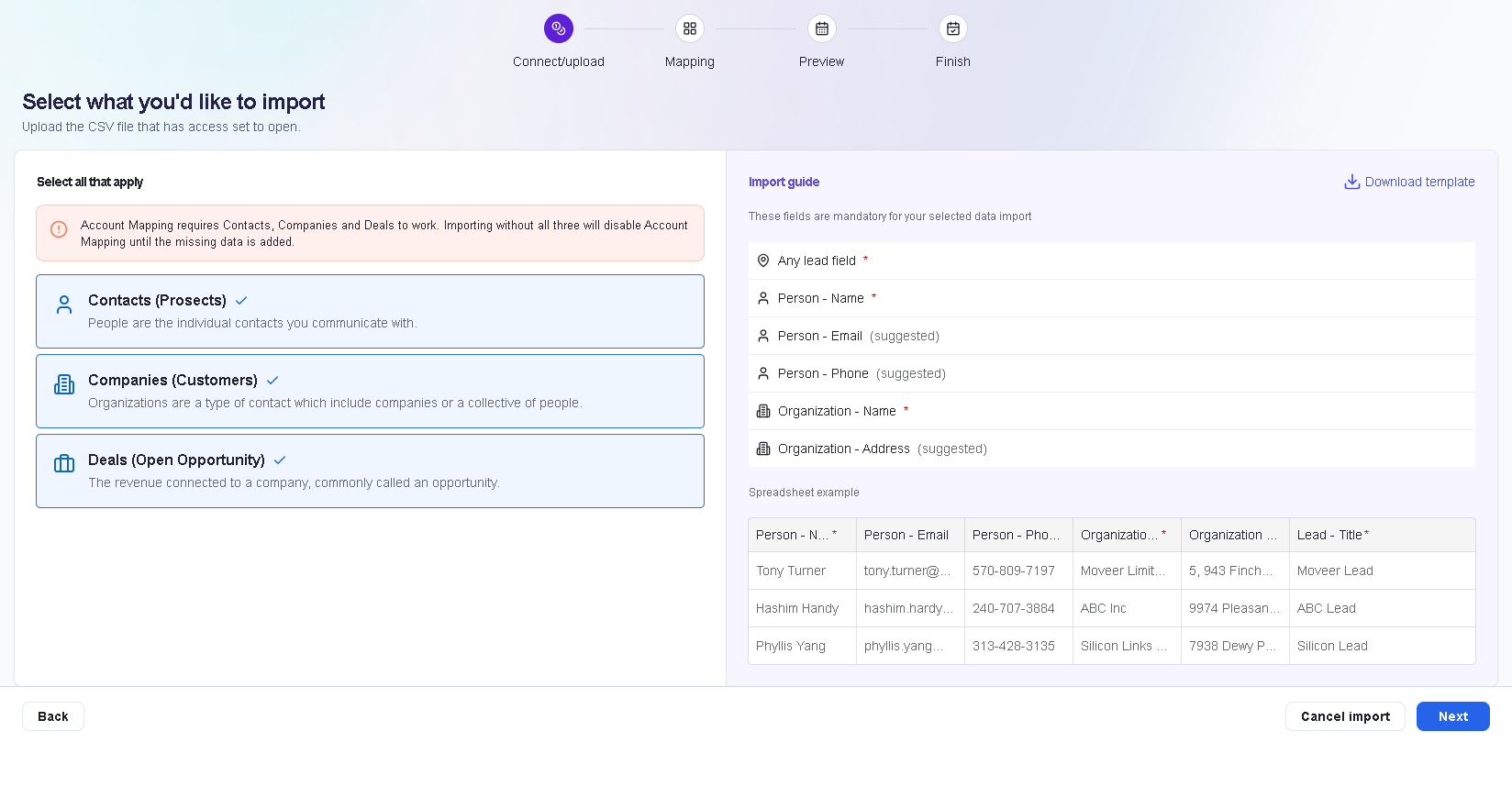
4. **Choose pipeline you want to import from**\
   Choose from contacts, companies and deals that you want to import in sharkdom.\
   If you are proceeding for first time then it might take time.

<figure><img src="/files/pGNGvBREIDg9rPDjgSus" alt=""><figcaption></figcaption></figure>

<figure><img src="/files/chGqzBo14237FSdOM54r" alt=""><figcaption></figcaption></figure>

<figure><img src="/files/tbVH4VFo0sMJjloB6ta6" alt=""><figcaption></figcaption></figure>

<figure><img src="/files/MyiuyQndSjFpiUbeuMiF" alt=""><figcaption></figcaption></figure>

<br>


---

# Agent Instructions
This documentation is published with GitBook. GitBook is the documentation platform designed so that both humans and AI agents can read, navigate, and reason over technical content effectively. Learn more at gitbook.com.

## Querying This Documentation
If you need additional information that is not directly available in this page, you can query the documentation dynamically by asking a question.

Perform an HTTP GET request on the current page URL with the `ask` query parameter:

```
GET https://help.sharkdom.com/integrations/zoho-crm.md?ask=<question>
```

The question should be specific, self-contained, and written in natural language.
The response will contain a direct answer to the question and relevant excerpts and sources from the documentation.

Use this mechanism when the answer is not explicitly present in the current page, you need clarification or additional context, or you want to retrieve related documentation sections.